How it works
From sound desk to congregation in three steps
Designed to be set up by a church tech volunteer — not a specialist. This page walks through the complete workflow for operators, listeners, and church leaders.
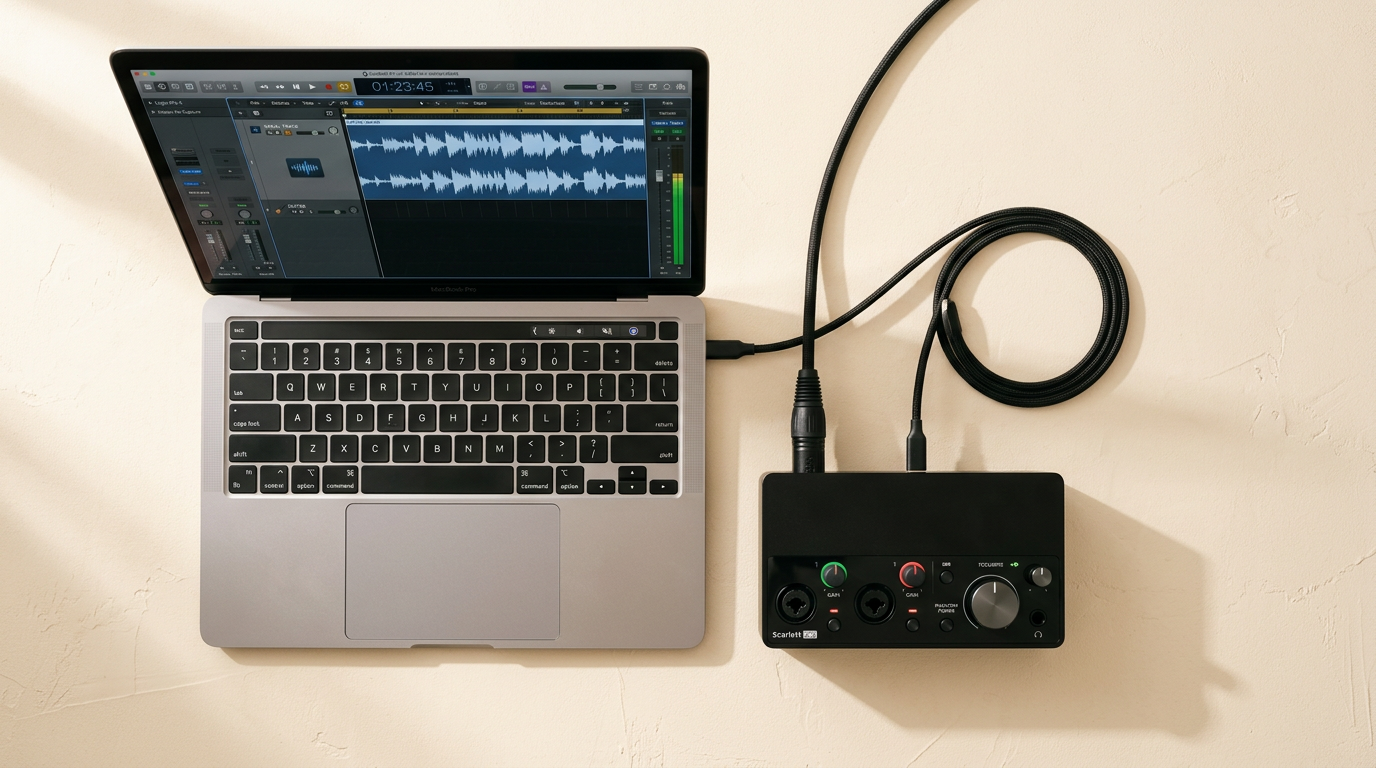
Audio captured from your sound desk flows through our cloud pipeline and appears on every listener's phone in their chosen language — in under two seconds.
Average end-to-end latency: under 2 seconds
Give your session a title, add the speaker name, set the start time, and select which languages you want to offer. You can link to a programme entry so details fill in automatically.
Use the pre-session audio test to speak a sentence and verify the transcript appears. Adjust your input gain if needed. We recommend running a 5-minute test before Sunday morning.
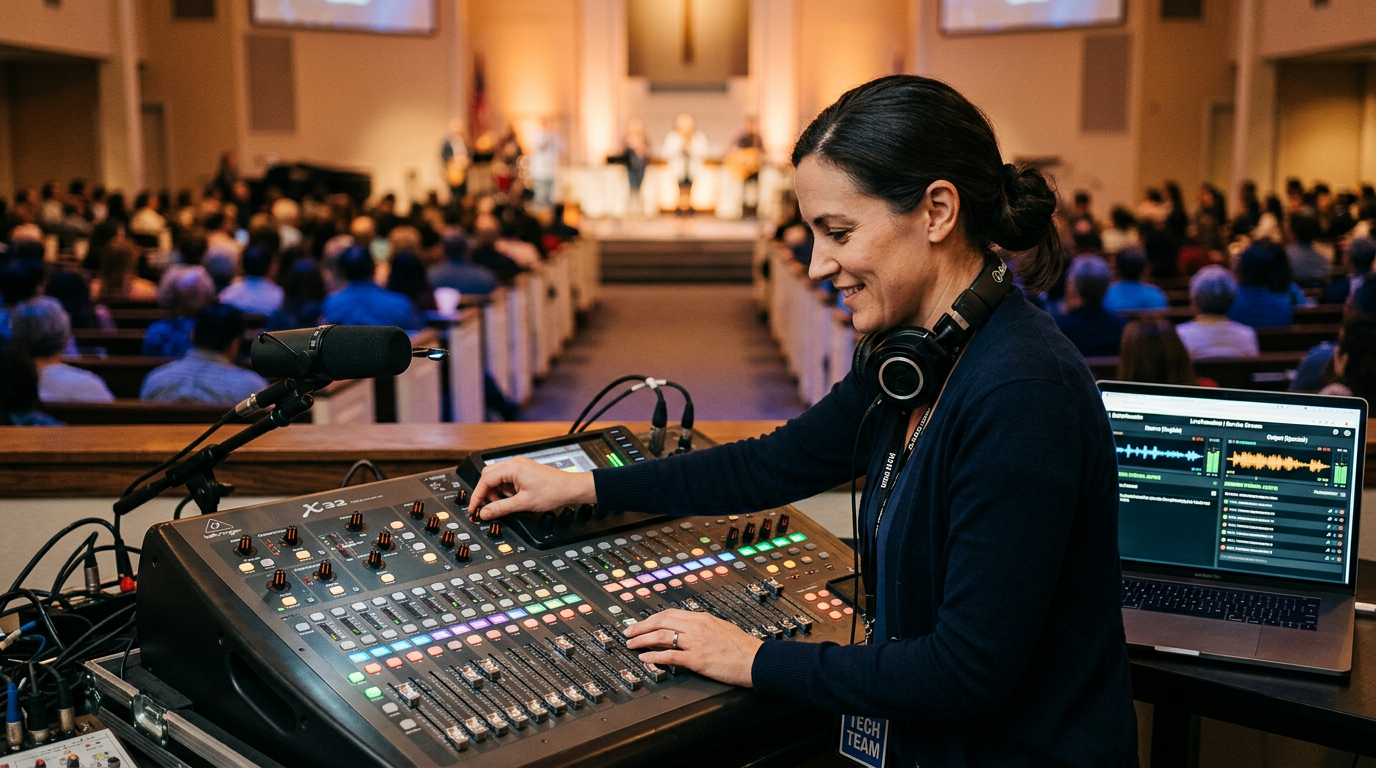
When the service begins, press Start. The system runs automatically — you can leave the capture laptop unattended using a device token. Monitor listener counts and the live transcript from the dashboard at any time during the service.
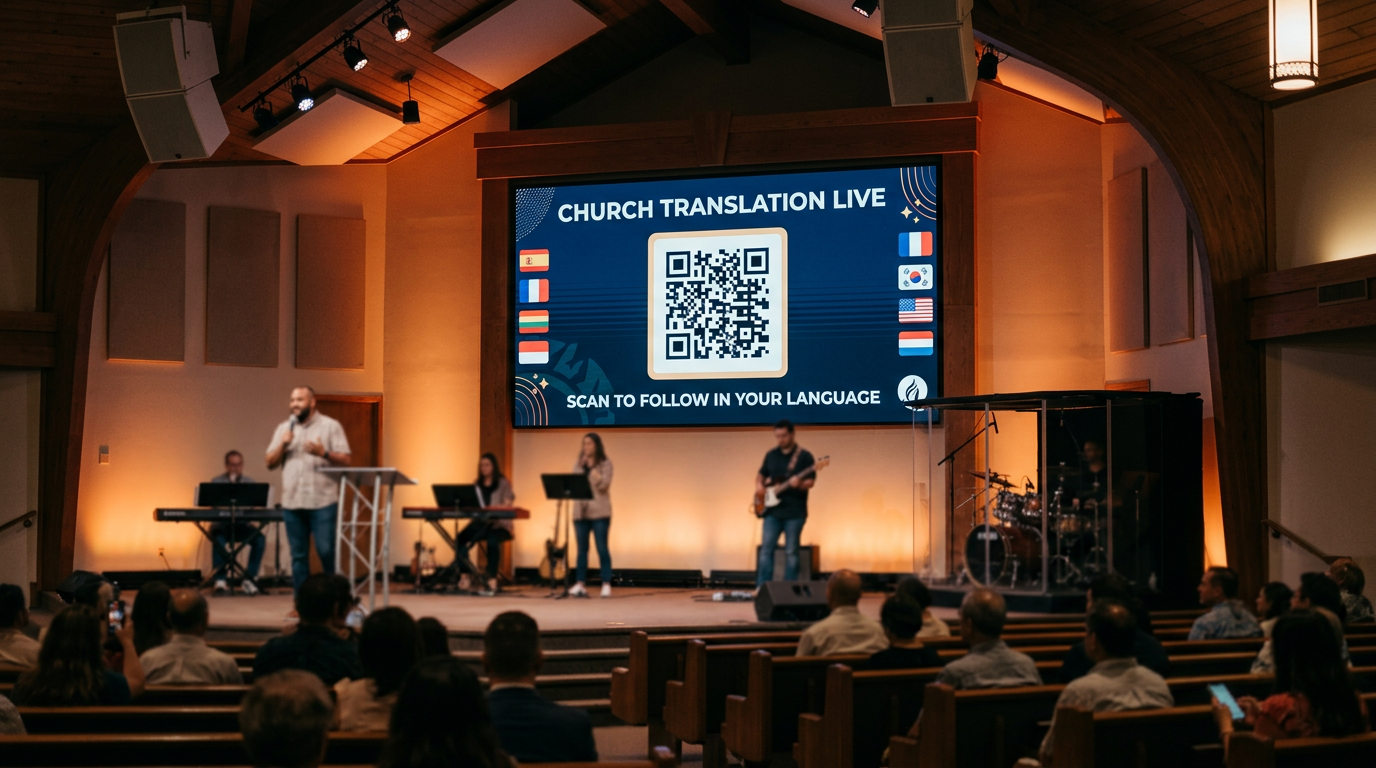
Point your phone camera at the QR code on screen. The listener page opens automatically in your browser — no app to download, no account to create.
Choose from the list of available languages. Each language is shown in both English and its native script so you can find yours immediately.
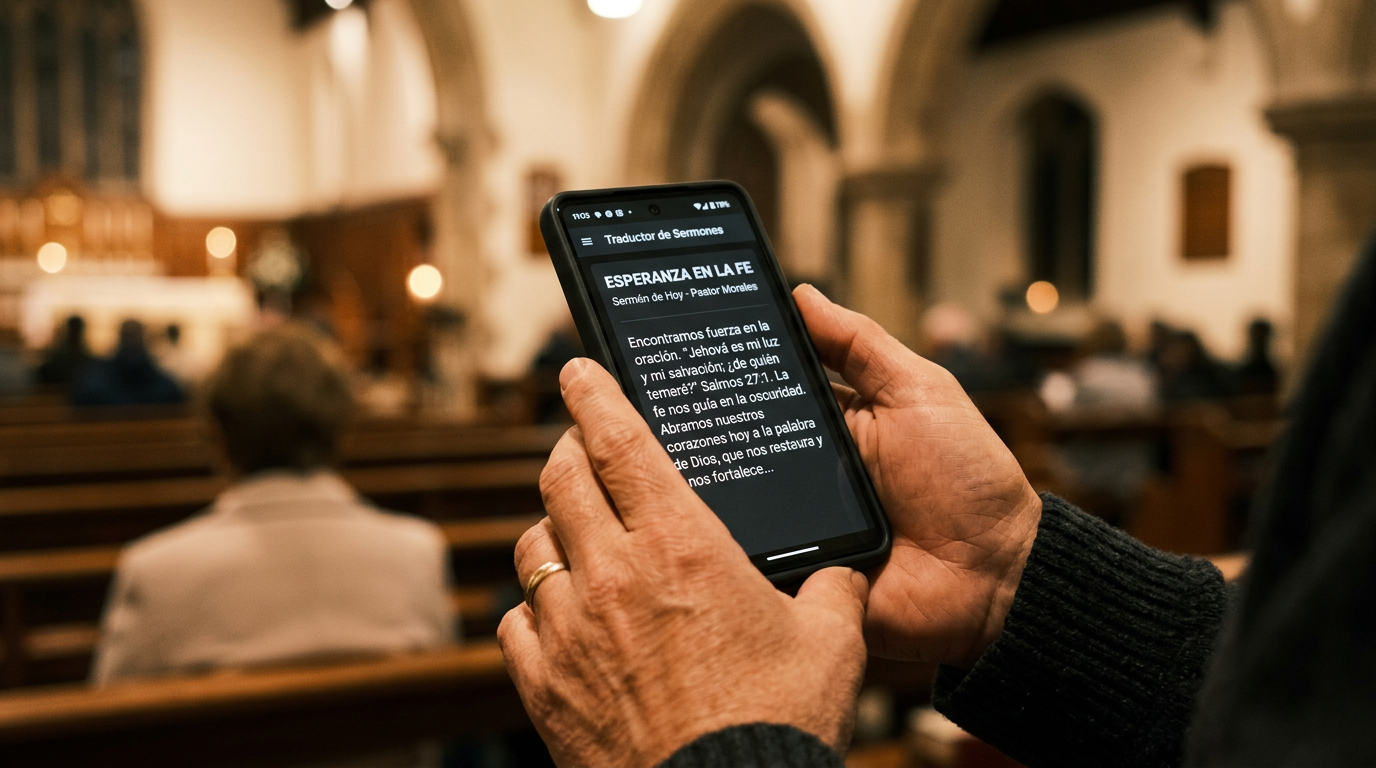
Translated text appears as the pastor speaks. Use the font size controls to adjust to your preference. The display auto-scrolls so you never lose your place.
If your phone locks or your connection drops, the page reconnects automatically and fills in any text you missed. No manual refresh needed.
See how many people connected, which languages were used, and peak concurrent listener counts for each session.
Every sermon is automatically transcribed and translated. Review, correct, and download as text or JSON — or publish directly to your content platform.
View all past and upcoming sessions, filter by status, and access transcripts, analytics, and recordings from a single dashboard.